 Louis Reynolds
YouTube TV rolled out two of its biggest changes yet this week: a fully custom multiview feature and a set of cheaper, genre-specific "YouTube TV Plans" that break the service away from the flat $82.99-per-month base package. The updates began reaching subscribers in mid-July 2026, and both promise more control over what you watch and what you pay. But there is a catch that Google's announcement glosses over: getting multiview and 4K streams to run smoothly is as much a hardware and home-network problem as it is a subscription choice.
Here is what actually changed, and how to set your equipment up so the new features work the way they are supposed to.
What YouTube TV just launched
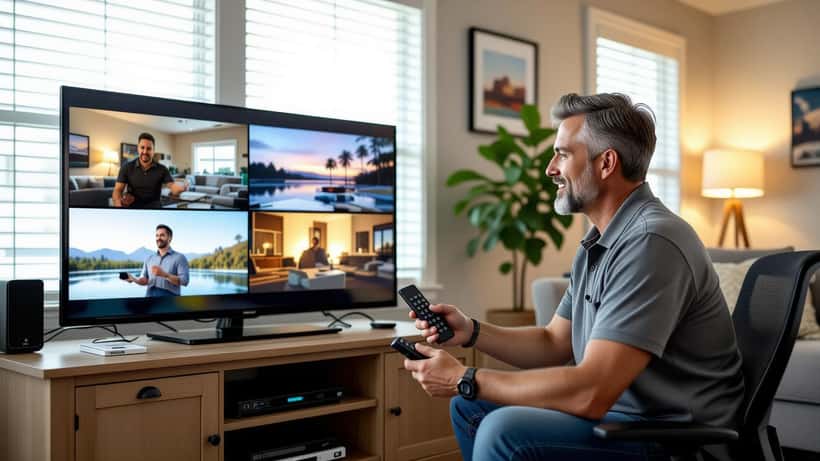
Two separate updates landed at once. The first is custom multiview, which lets you build your own split-screen grid of up to four live channels instead of choosing from Google's pre-set pairings. The second is YouTube TV Plans: ten genre-based packages — sports, news, entertainment and others — pitched as lower-cost alternatives for viewers who do not want to pay for more than 100 channels they never open.
Alongside the TV service, YouTube also flipped on an AI "Super Resolution" upscaling tool that generates higher-resolution versions of lower-quality streams, and extended its conversational AI assistant to all smart TVs. Together, the changes push far more processing onto your television and your home connection than a standard single-channel stream ever did.
Why multiview is a hardware question, not just a menu setting
Running four live feeds at once means your device is decoding four video streams in parallel. Older streaming sticks and budget smart TVs were built to handle one. When people complain that multiview stutters, freezes or drops to a lower resolution, the problem is almost never their subscription — it is an underpowered device or a saturated Wi-Fi signal.
A few concrete requirements matter here:
- Device horsepower. Multiview works best on recent-generation streaming boxes and smart TVs with enough processing headroom to decode several feeds. A five-year-old stick may technically load the grid, then throttle it.
- Bandwidth. A single HD stream needs roughly 3 to 7 Mbps; 4K climbs toward 20 Mbps or more. Four simultaneous feeds multiply that demand. If several people in the house are also streaming, a slow plan will choke.
- Wi-Fi placement. A 4K multiview grid over a weak wireless signal is the single most common cause of buffering. A wired Ethernet connection to the TV, where possible, removes the guesswork entirely.
Getting the setup right, step by step
Start by confirming your internet speed with a quick test on the same device you use to stream, not on your phone in another room. If you are under about 25 Mbps of usable throughput at the TV, four-way 4K multiview will struggle no matter what plan you pay for.
Next, check whether your television is doing the upscaling or whether YouTube's Super Resolution is. Running both at once can introduce lag and visible artifacts. Most modern sets let you turn off in-TV upscaling in the picture settings, which is usually the cleaner option when the app is already enhancing the image.
Finally, mind your HDMI chain. If you route YouTube TV through a soundbar or an older receiver, a cable or port that tops out at an earlier HDMI standard can quietly cap your picture at 1080p even when the app is delivering 4K. Connecting the streaming device straight to the TV, then sending audio back to the soundbar, avoids that bottleneck.
When it makes sense to call an expert
Plenty of households will get multiview running in ten minutes. Others — especially those with a mesh Wi-Fi system, a wall-mounted TV, a home-theater receiver in the mix, or a spotty connection they have never diagnosed — hit a wall fast. That is where a consumer electronics or home-network specialist earns their fee.
A technician can measure the real throughput reaching your TV, reposition or hard-wire the connection, confirm your device can actually decode four streams, and set the picture pipeline so Super Resolution and your TV's own processing are not fighting each other. For anyone who has already paid for a new genre plan and 4K add-on but still sees a grainy, stuttering grid, an hour of professional setup often solves what days of menu-fiddling could not.
If you would rather not troubleshoot alone, you can compare consumer electronics and home-theater experts on Expert Zoom and describe your exact device and network before booking.
Should you switch to a genre plan?
The new YouTube TV Plans are worth a look if your viewing is narrow — say, sports and news only — and you resent paying for a full channel bundle. Before you switch, list the specific channels you watch in a typical month and check them against the genre package contents, because a cheaper plan that drops one channel your household relies on is a false economy.
It is also worth confirming exactly what happens to your billing date and any 4K Plus add-on when you move plans. Streaming price and cancellation terms have drawn scrutiny from regulators, and the Federal Trade Commission publishes plain-language consumer alerts on subscription and billing practices that are worth reading before you change or cancel anything.
The bottom line
YouTube TV's July 2026 update is a genuine upgrade: real custom multiview and cheaper, tailored plans are what subscribers have asked for. But the features only shine on hardware and a home network that can carry them. Test your speed, check your device, sort out your HDMI and Wi-Fi, and — if the grid still stutters — bring in a specialist rather than assuming you paid for something broken. The subscription is the easy part; the setup is where the picture is won or lost.