 Andrea Soto
Choosing the wrong camera for online tutoring can cost you students before the first session ends. Blurry video, poor lighting, and audio lag send a clear signal: this tutor isn't prepared. The truth is, a $40 webcam can outperform a $200 one — if you know what to look for. Here are 7 myths about cameras for academic tutoring, debunked.
Myth 1: More Megapixels Means Better Video Quality
Many tutors assume that the highest megapixel count guarantees the sharpest video. This is false. For online tutoring sessions over platforms like Zoom or Google Meet, video streams are compressed to 720p or 1080p regardless of your camera's raw resolution. A 12 MP webcam delivers no visible advantage over a 2 MP model when both are streaming at 1080p at 30 fps.
What actually determines perceived sharpness is the camera's sensor size and its low-light performance. The Logitech C920 (2.0 MP) consistently outranks many 4K cameras in real tutoring conditions because its sensor handles classroom lighting without grain. According to Wirecutter's 2026 webcam testing, image clarity in variable lighting matters far more than megapixel specs.
À retenir : When shopping for a tutoring camera, ignore megapixels. Prioritize sensor quality, frame rate stability, and autofocus speed.
Myth 2: You Need a DSLR or Mirrorless Camera for Professional Results
This myth has driven tutors to spend $800+ on camera rigs that are overkill for a video call. A DSLR requires capture cards, external power, and lens management — none of which improves the learning experience for students. What matters is consistent framing, stable exposure, and clear audio.
A dedicated webcam like the Razer Kiyo Pro or Logitech StreamCam delivers plug-and-play 1080p video with built-in autofocus and light correction — no additional hardware needed. For academic tutoring, where whiteboard writing, textbook sharing, and face-to-face explanation are common, this setup is optimal.
Myth 3: Built-In Laptop Cameras Are Good Enough
Built-in laptop cameras are engineered for portability, not performance. They're mounted at a fixed angle, use tiny sensors, and lack autofocus in most models under $1,500. For students joining a tutoring session, watching a tutor on a low-quality built-in camera creates visual fatigue within 20 minutes — directly reducing comprehension and session effectiveness.
The positioning problem alone is disqualifying for serious academic tutors. A built-in camera is typically placed at eye level only if the laptop sits at chin height. In standard desk use, the angle points upward, creating an unflattering and unprofessional view. An external webcam placed at eye level or slightly above communicates professionalism and puts students at ease.
"Students read confidence through video presence. A camera that shows you clearly — eye contact, good framing, no grain — increases trust from the first minute of session." — Dr. Alicia Fontaine, Educational Technology Researcher, University of Texas at Austin, 2025
Myth 4: Camera Choice Doesn't Affect Student Retention
Research in online education consistently shows that video quality correlates with perceived instructor credibility. A study by the Learning and Technology Association (2025) found that tutors using HD webcams with stable framing retained 34% more students across a 12-week period compared to those using built-in or low-quality cameras.
Why Video Quality Signals Competence
The psychological mechanism is straightforward: visual clarity triggers cognitive ease. When students can see their tutor without effort — clear face, readable whiteboard, stable image — their working memory focuses on the lesson content rather than decoding a pixelated stream. For academic tutoring, where subjects like calculus or chemistry require intense cognitive engagement, reducing visual friction directly improves learning outcomes.
Camera Setup Checklist for Academic Tutors
- Position camera at eye level — mount on a monitor arm if needed
- Ensure a neutral, uncluttered background (bookshelves or plain walls)
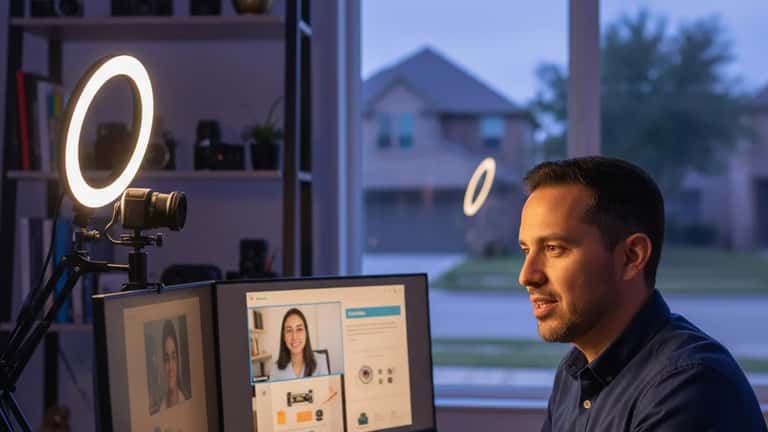
- Light from the front: place a ring light or window light facing your face
- Test in your actual tutoring software (Zoom, Teams, or your platform) before sessions
- Set resolution to 1080p/30fps in camera settings — not "auto"
For tutors working with platforms like Expert Zoom, professional video presence directly influences how clients evaluate and book sessions.
Myth 5: Lighting Doesn't Matter If You Have a Good Camera
This is the most common mistake tutors make. Even a $300 webcam produces grainy, washed-out footage in poor lighting conditions. Camera sensors amplify whatever light is available — too little light means too much digital noise; too much backlight (sitting in front of a window) means a silhouette instead of a face.
The optimal setup for academic tutoring involves three lighting principles:
- Key light: Primary light source facing your face — a ring light (5,500K daylight temperature) placed 18–24 inches from your face at eye level
- Fill light: Secondary, softer light from the side to eliminate harsh shadows — a simple desk lamp with a diffuser works
- Avoid backlighting: Never sit with a window or bright wall behind you during sessions
A $25 ring light combined with a $60 webcam will produce dramatically better results than a $200 webcam used in poor lighting. The National Education Association (NEA) recommends consistent, flattering lighting as a baseline for all online instruction professionals [NEA Online Teaching Standards, 2025].
Myth 6: Any Wide-Angle Camera Works for Showing a Whiteboard
Tutors in STEM subjects — math, physics, chemistry — frequently need to show handwritten work on a physical whiteboard or paper. A standard webcam with a 78° field of view won't capture a full whiteboard without repositioning the camera entirely. This creates constant interruptions that fragment the lesson flow.
The solution is a document camera (also called a visualizer) used alongside the main webcam. A document camera like the IPEVO V4K Ultra High Definition sits on the desk and captures papers, textbooks, and handwritten calculations at high resolution — independent of the tutor's face camera.
Recommended Two-Camera Setup for Math and Science Tutors
| Use Case | Camera Type | Recommended Model | Price Range |
|---|---|---|---|
| Face (main) | Webcam | Logitech C920 / StreamCam | $60–$120 |
| Documents/whiteboard | Document camera | IPEVO V4K | $95 |
| Full whiteboard (large) | Wide-angle webcam | Logitech C922 | $100 |
| Budget option | Tablet as camera | iPad + Continuity Camera | $0 extra |
Switching between cameras mid-session is simple in Zoom: click the video settings icon and select the active camera. Practice the switch before sessions so transitions are seamless.
Myth 7: Once Set Up, Camera Settings Never Need Adjustment
Cameras require periodic reconfiguration as seasons change, software updates roll out, and your tutoring setup evolves. Zoom, Google Meet, and Microsoft Teams each apply different compression algorithms that affect how your camera feed appears to students. A setting that looked perfect in summer may appear washed out in winter when natural light angles shift.
Establish a monthly "tech check" routine:
- Open your tutoring platform in test mode
- Record a 2-minute test video
- Watch the playback on a second screen or mobile device — simulate what your students see
- Adjust brightness, contrast, and white balance in your camera's control app (Logitech G HUB, Razer Synapse, or Windows Camera Settings)
- Confirm your microphone levels and background noise cancellation are active
When to Upgrade Your Camera
Upgrade your camera when you notice: persistent grain in low-light sessions, autofocus hunting (continuous refocusing), or latency over 3 frames. These are hardware limitations no software fix can resolve. At that point, a $100 investment in a current-generation webcam delivers immediate improvement.
For tutors offering academic tutoring services, the camera investment is directly tied to booking rates. Students evaluating tutors on video-forward platforms make decisions within the first 30 seconds of a profile video — a timeframe where visual quality determines whether they read further.
À retenir : Your camera is the first impression you make on every prospective student. Treating it as optional equipment is the most expensive mistake an online academic tutor can make.
Ces informations sont fournies à titre informatif. Les recommandations de prix et de matériel sont basées sur des tests publiés en 2025-2026 et peuvent varier selon les disponibilités du marché.
How to Choose the Right Camera for Your Tutoring Subject
Academic tutoring spans dozens of subjects, and the optimal camera setup varies by discipline. A language arts tutor has different visual needs than a calculus tutor or a chemistry instructor. Understanding which camera features matter for your specific subject prevents overspending and under-performing.
Language Arts, History, and Humanities Tutors
For subjects centered on discussion, reading comprehension, and essay analysis, the primary visual requirement is a clear, well-framed face shot. Students need to read facial expressions and respond to conversational cues. The ideal setup:
- Camera: Logitech C920 or Brio 100 (1080p/30fps, good autofocus, $60–$170)
- Framing: Head and shoulders, centered, with 15% headroom above
- Background: Simple bookshelf or neutral wall — visual chaos distracts from content
- Key feature: Background blur via software (Zoom virtual background) is useful when your home office isn't camera-ready
STEM Tutors (Math, Physics, Chemistry, Computer Science)
STEM subjects demand the most complex camera configurations because tutors must alternate between face-to-camera explanation and showing problem-solving steps. The document camera becomes essential here.
- Face camera: Any 1080p webcam with stable autofocus ($60–$120)
- Document camera: IPEVO V4K or Elmo TT-12iD for capturing written work at up to 4K resolution
- Screen sharing: Use a drawing tablet (Wacom Intuos) instead of a physical whiteboard when possible — cleaner, easier to zoom, and no second camera needed
- Platform tip: Khan Academy-style handwriting on a drawing tablet outperforms a whiteboard camera in most online tutoring scenarios
Music Tutors
Music tutoring has the most demanding camera requirements of any academic discipline. Instruments must be visible, finger positions need to be readable, and some subjects (piano, guitar) require a second angle to show keyboard or fretboard position simultaneously.
- Primary camera: Wide-angle webcam (90°+ FOV) at 1080p/60fps for smooth motion capture
- Secondary angle: A smartphone mounted as a secondary camera using apps like EpocCam or iPhone's Continuity Camera feature
- Audio priority: For music, microphone quality exceeds camera quality in importance — invest in a USB condenser mic (Blue Yeti, $130) before upgrading your camera
- Critical: Disable all audio processing in your platform settings — Zoom's noise cancellation actively degrades music quality
Test Prep and Standardized Test Tutors (SAT, ACT, GRE)
Test prep tutors frequently need to display practice tests, timing countdowns, and annotated answer explanations. Screen sharing dominates these sessions.
- Camera: Any basic 720p webcam — you're sharing screens more than showing your face
- Monitor setup: Dual monitor configuration so you can see the student's face while running their materials on the second screen
- Key software tool: Annotating tools like Explain Everything or Zoom's built-in whiteboard for marking up practice questions in real time
The Real Cost of Camera Neglect: A Tutor's Story
Carlos Mendez, an AP Chemistry tutor based in Houston, Texas, spent two years teaching on a built-in MacBook camera. His session quality scores on his tutoring platform consistently hovered around 4.1 out of 5. Students frequently mentioned in reviews: "hard to see the whiteboard" and "video was unclear during problem-solving."
In January 2026, Carlos invested $155 in a Logitech C920 webcam and an IPEVO V4K document camera. Within 90 days, his average session rating climbed to 4.7. His booking rate — the percentage of profile views that convert to booked sessions — increased by 41%. He attributes this not to his teaching improving, but to students being able to evaluate his competence through clear, professional video before booking.
"I didn't realize that my old setup was making me look less qualified than I am," Carlos explains. "The camera is what students see before they ever meet you. It's your resume on video."
This scenario is common among tutors who enter the field focused on subject expertise and overlook the technical layer of online instruction. The National Tutoring Association's 2025 Online Tutor Certification guidelines explicitly include "professional video setup" as a standard for certified online tutors NTA Standards, Section 3.4.
Camera Settings That Most Tutors Never Touch (But Should)
Purchasing a quality webcam is only half the equation. Most webcams ship with factory default settings optimized for general video calls — not for the specific conditions of a professional tutoring studio. Accessing your camera's control software and adjusting these settings takes 10 minutes and delivers immediate improvement.
White Balance
White balance determines whether your image looks warm (orange-yellow) or cool (blue). Auto white balance works in stable lighting but fails when mixing light sources — for example, if you have a window to your left and a desk lamp to your right. Set white balance manually to 5,500K (daylight) and keep it fixed.
Exposure and Gain
Gain amplifies the camera sensor's signal in low light — but amplification also amplifies noise, creating a grainy image. Prioritize sufficient physical lighting over high gain settings. Set exposure to automatic only if your lighting is perfectly consistent. For most home tutoring setups, manual exposure at ISO 100–200 reduces grain significantly.
Autofocus vs. Manual Focus
Autofocus is convenient but causes visible "hunting" — a brief loss of sharpness as the camera recalibrates — when you move during a session. For a fixed desk setup where you don't move far from the camera, disable autofocus and set manual focus to your face distance. This eliminates the distraction of temporary blur during explanations.
Frame Rate
Set your camera to 30 fps (frames per second) for standard tutoring. Some cameras offer 60 fps, which creates smoother motion but requires more bandwidth — and can cause streaming instability on slower connections. Unless you're demonstrating physical skills (like a sports or dance tutor), 30 fps is the professional standard.
Resolution
Set resolution to 1080p, not "auto." Many platforms default to 720p to reduce bandwidth consumption. In your camera's control app, force 1080p output so the platform receives a higher-quality signal before applying its own compression.
Privacy and Data Security for Tutors Using Cameras
Online tutoring sessions that are recorded — for student review, parent transparency, or compliance purposes — create data handling obligations that many tutors overlook. In the United States, recording a session without explicit consent from all participants is subject to federal and state regulations.
Federal and State Recording Laws
Under the Electronic Communications Privacy Act (ECPA), recording a video call without consent of all parties is regulated differently across states:
- One-party consent states (including Texas, Florida, New York): Only one participant needs to consent — meaning you as the tutor can legally record without additional consent in most contexts
- Two-party (all-party) consent states (including California, Illinois, Michigan): All participants must consent before recording — meaning you must obtain written or verbal consent from students and parents before recording any session
For tutors working with minors, the Children's Online Privacy Protection Act (COPPA) adds additional requirements: parental consent is required for any data collection from children under 13, including video recordings Federal Trade Commission, COPPA Guidance, 2025.
Practical Steps for Compliant Recording
- Include a recording consent clause in your service agreement
- Enable Zoom's or your platform's built-in consent notification (participants see "Recording in Progress")
- Store recordings in encrypted cloud storage — Google Drive with restricted access or a FERPA-compliant LMS
- Set automatic deletion for recordings older than 90 days unless a student specifically requests retention
- Never share session recordings on social media without explicit written permission from the student and, if a minor, their legal guardian
These practices protect both tutors and students and demonstrate the professional accountability that distinguishes certified academic tutors from informal instruction.
Building a Complete Tutoring Studio on Any Budget
The camera is one component of a functional online tutoring studio. Understanding how cameras integrate with audio, lighting, and connection infrastructure allows tutors to make targeted investments rather than spending money in the wrong places.
Budget Studio ($100–$200 total)
- Camera: Logitech C920 ($70) or Brio 100 ($80)
- Lighting: Single ring light, 10-inch, 5,500K ($25)
- Audio: Headset with built-in microphone (included with most laptops) or Blue Snowball iCE USB mic ($50)
- Connection: Wired Ethernet via USB-C adapter ($15) — eliminates Wi-Fi instability
- Background: Neutral wall, bookshelf arrangement, or digital background
Mid-Range Studio ($300–$500 total)
- Camera: Logitech StreamCam or Razer Kiyo Pro ($100–$130)
- Document camera: IPEVO V4K ($95) for STEM subjects
- Lighting: Two-light setup — key light + fill light panel ($80)
- Audio: Blue Yeti USB condenser microphone ($130) with a simple pop filter ($10)
- Background: Acoustic panels for sound quality (doubles as professional visual backdrop)
Professional Studio ($700–$1,200 total)
- Camera: Sony ZV-1 II with Elgato Cam Link 4K capture card ($600)
- Document camera: Elmo TT-12iD ($300) for document display
- Lighting: Three-point lighting rig with soft boxes ($200)
- Audio: Shure MV7 XLR/USB microphone ($250) with acoustic treatment
- Monitor: Second display for student view simulation and materials ($200)
For most academic tutors, the mid-range studio delivers professional results. The professional tier is justified for tutors generating over $5,000/month in session revenue, where the studio investment amortizes within 60–90 days.
Questions to Ask Before Purchasing
Q: Should I buy a 4K webcam? 4K webcams (like the Logitech Brio 500) are useful if you plan to record high-resolution tutorial videos for asynchronous delivery. For live sessions, platforms compress to 1080p anyway — the 4K difference is invisible to students in real-time.
Q: Can I use my smartphone as a webcam? Yes. iPhones running iOS 16+ support Apple's Continuity Camera feature, which turns your iPhone into a high-quality webcam via USB or Wi-Fi. Android users can use DroidCam or EpocCam. Phone cameras often outperform mid-range webcams for face-quality, but require a stable mount.
Q: How often should I replace my webcam? Webcam technology improves incrementally. Replace when you notice hardware failure signs (persistent grain, autofocus failure) or when your current camera no longer supports your platform's preferred resolution. On average, a quality webcam serves a professional tutor for 3–5 years.
Bottom line: Academic tutors who invest in professional camera setup before launching their online practice reduce their student acquisition cost and increase their booking conversion rate. The camera is not a luxury — it is the window through which every student evaluates your competence before committing to a session.